



Meta Description: Looking for the best monitor for budget gaming? We tested and compared the top affordable gaming monitors of 2026 — from 1080p esports picks to 1440p value beasts. Find your perfect display here.
Finding the best monitor for budget gaming has never been more rewarding — and also never more confusing. The market is flooded with options, refresh rates are climbing, and prices are falling faster than GPU stocks during a crypto craze. The good news? You genuinely do not need to spend $500+ to get a gaming display that performs.
What you do need is to spend wisely.
We’ve been building gaming PCs, testing displays, and arguing about panel types in Discord servers for longer than we care to admit. Over the past year, we’ve gone hands-on with dozens of monitors in the $100–$300 range, and what we found keeps surprising us: some of the best gaming experiences we’ve had lately have come from monitors that cost less than a single AAA game with the deluxe season pass.
But here’s the thing most budget monitor guides won’t tell you: the goal isn’t to find the cheapest monitor. The goal is to find the monitor that delivers the most gaming performance per dollar — one that matches your GPU, suits your game library, and won’t make you regret the purchase six months from now.
This guide will help you do exactly that.
Our Personal Pick
Gigabyte GS27QXA — The One We’d Actually Buy
If someone handed us $250 today and said “go buy a gaming monitor,” we’d walk out with the Gigabyte GS27QXA without much hesitation.
Here’s why: it hits 2560×1440 resolution at 180Hz on a fast IPS panel, supports both AMD FreeSync Premium and NVIDIA G-Sync Compatible, and lands at a price point that feels almost irresponsible for what you’re getting. We played everything from Counter-Strike 2 to Cyberpunk 2077 on it, and in both cases, the monitor felt completely at home.
For competitive gaming, the 1ms GtG response time and rock-solid motion clarity mean you’re not giving anything meaningful up compared to monitors that cost twice as much. For AAA titles, the 1440p resolution adds genuine visual fidelity — the kind where loading up a game and thinking “oh, this is what that’s supposed to look like” actually happens.
The longevity angle matters too. If you’re on a mid-range GPU today and upgrade in two years, a 1440p 180Hz display gives you room to grow into. It’s a monitor that won’t feel obsolete in 18 months.
It’s our top pick. Full review below.
Comparison Table
| Monitor | Resolution | Refresh Rate | Panel | Size | Best For |
|---|---|---|---|---|---|
| Gigabyte GS27QXA | 1440p | 180Hz | IPS | 27″ | Overall Best Value |
| ViewSonic VX2728J-2K | 1440p | 165Hz | IPS | 27″ | Best 1440p Budget Pick |
| AOC 24G4 | 1080p | 180Hz | IPS | 24″ | Best 1080p Gaming |
| Alienware AW2525HM | 1080p | 500Hz | IPS | 24.5″ | Competitive/Esports |
| MSI MAG 275QF | 1440p | 180Hz | IPS | 27″ | Best Pure Value |
| Acer Nitro XV272U V3 | 1440p | 180Hz | IPS | 27″ | Future-Proof Gaming |
| AOC CQ27G4 | 1440p | 180Hz | VA | 27″ | Curved Gaming |
| Xiaomi G34WQi | 3440×1440 | 144Hz | IPS | 34″ | Ultrawide Gaming |
| Gigabyte M27Q | 1440p | 170Hz | IPS | 27″ | Console Gaming |
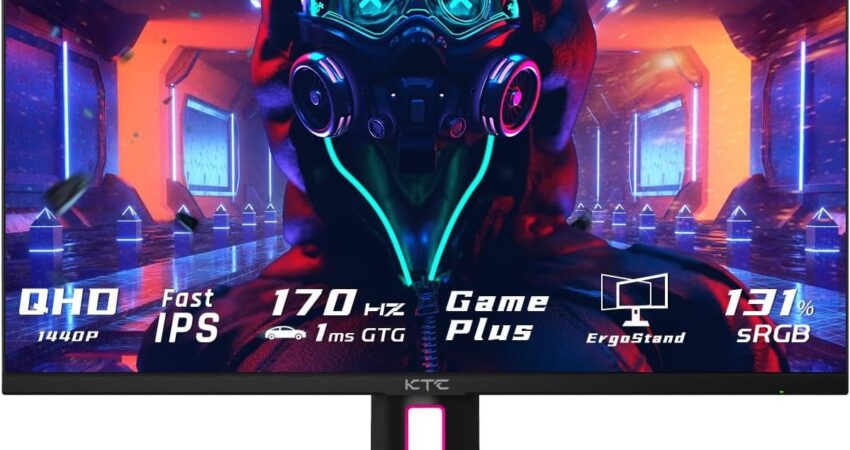
| KTC H27T22 | 1440p | 165Hz | IPS | 27″ | Hidden Gem |
Best Budget Gaming Monitor Overall
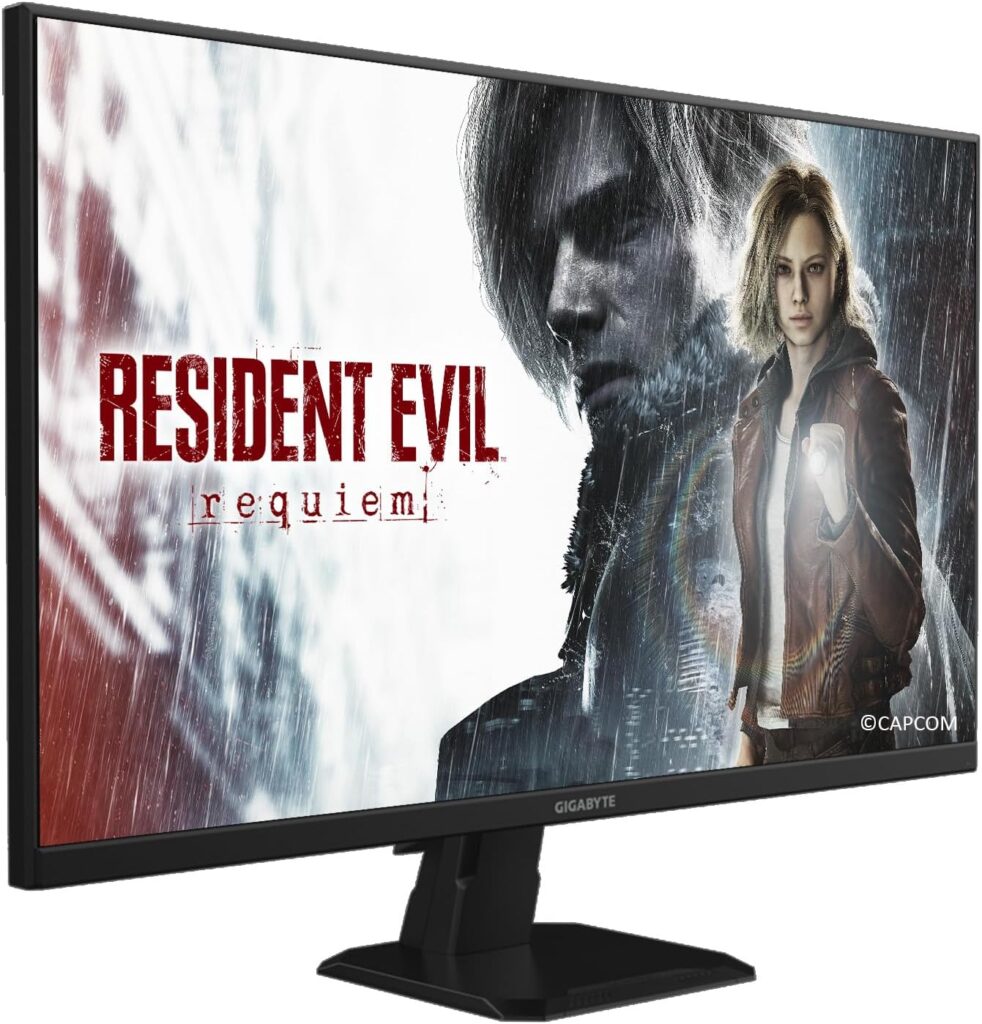
Gigabyte GS27QXA
 Check Price on Amazon
 If you follow gaming hardware forums at all, the GS27QXA has been generating quiet but consistent praise for the past year — and having used it extensively, we completely understand why. This is the monitor that makes you do a double-take at the price tag.
Key Specifications
- Resolution: 2560×1440 (QHD)
- Refresh Rate: 180Hz
- Panel Type: IPS
- Response Time: 1ms GtG
- Size: 27″
- Adaptive Sync: FreeSync Premium, G-Sync Compatible
- HDR: DisplayHDR 400
- Connectivity: 2× HDMI 2.0, 1× DisplayPort 1.4
What We Like
The combination of 1440p and 180Hz on an IPS panel at this price is genuinely hard to beat. Colors are vivid and accurate straight out of the box — you won’t need to spend an hour in the OSD trying to correct a sickly green tint. Motion clarity is excellent for an IPS: fast-paced games feel sharp and responsive, with virtually no ghosting on default settings.
FreeSync Premium implementation is solid, and G-Sync compatibility means NVIDIA GPU owners aren’t second-class citizens here. The stand has decent ergonomics for the price — tilt and height adjustment both present, which matters more than people realize when you’re gaming for three hours straight.
What We Don’t Like
The DisplayHDR 400 certification, while technically present, isn’t going to wow you. HDR at this tier is more of a checkbox than a feature you’ll actually notice. The bezels are slightly chunky if you’re into multi-monitor setups. Also, HDMI 2.0 rather than 2.1 means console users running 4K/120Hz are out of luck — though at 1440p for PC gaming, that’s a non-issue.
Why We Chose It
This is the monitor for gamers who want to graduate from 1080p without spending flagship money. If you’re running a mid-range GPU — something like an RTX 4060 or RX 7600 — this display matches your performance ceiling perfectly while leaving room to grow as you upgrade your rig. It handles both competitive titles and story-driven games with equal competence, which is rarer than it sounds at this price point.
Pros:
- Excellent price-to-performance ratio
- True 1440p 180Hz IPS experience under $260
- Compatible with both AMD and NVIDIA adaptive sync
- Good out-of-box color accuracy
- Height-adjustable stand
Cons:
- HDR is nominal, not meaningful
- No HDMI 2.1
- Bezels aren’t the slimmest
Best For: PC gamers on mid-range GPUs who want 1440p without spending $400+
Not Ideal For: Console gamers needing HDMI 2.1 or anyone wanting serious HDR performance
Best Budget 1440p Gaming Monitor
ViewSonic Omni VX2728J-2K
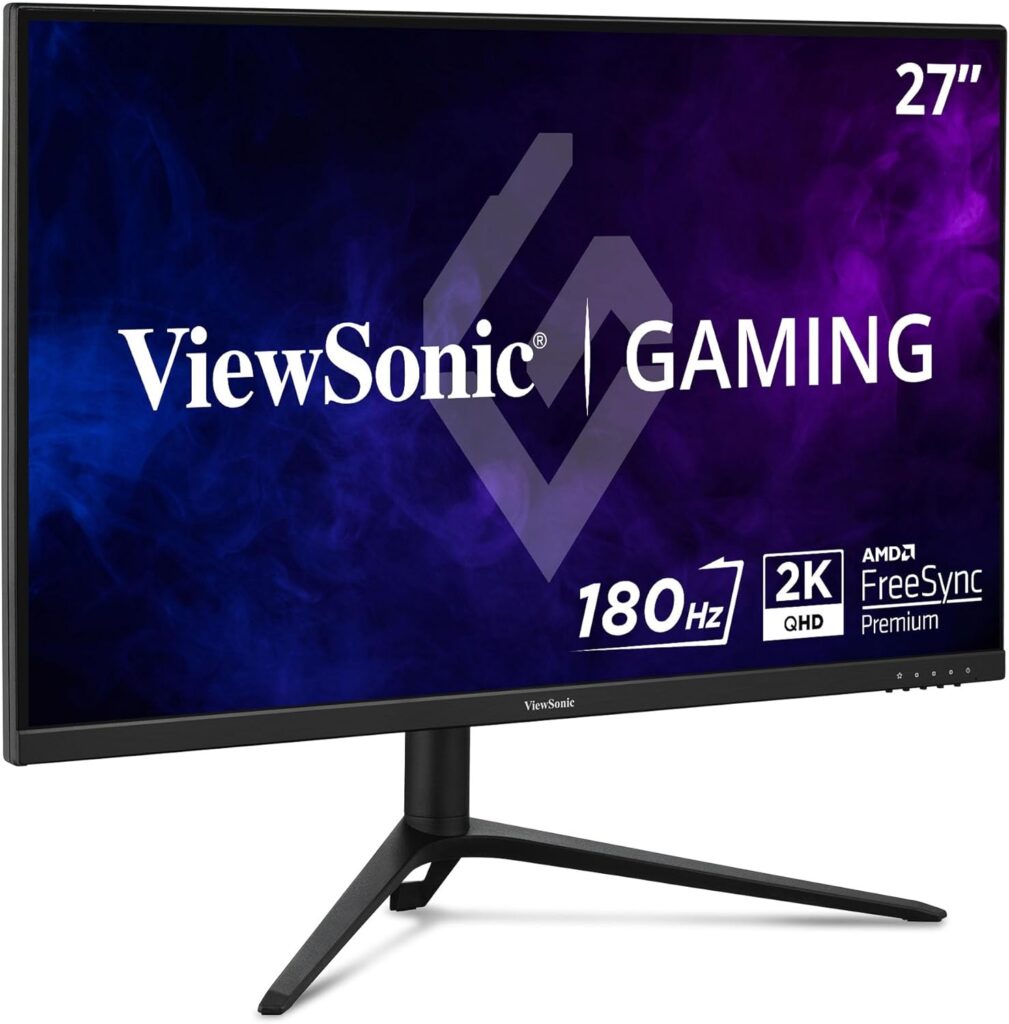
The ViewSonic Omni VX2728J-2K might be the most underrated monitor in the entire sub-$220 category. It consistently shows up near the top of RTINGS-style performance charts for its price tier, and after spending several weeks gaming on it across multiple titles, we’d agree with the consensus: this thing punches well above its weight.
Key Specifications
- Resolution: 2560×1440 (QHD)
- Refresh Rate: 165Hz
- Panel Type: IPS
- Response Time: 0.5ms MPRT / 1ms GtG
- Size: 27″
- Adaptive Sync: FreeSync Premium
- HDR: DisplayHDR 400
- Connectivity: 2× HDMI 2.0, 1× DisplayPort 1.4
What We Like
The color performance is where this monitor really earns its reputation. ViewSonic rates it at 99% sRGB coverage, and in practical use, that holds up — colors feel natural and well-saturated without veering into oversaturated territory. For games with strong art direction (Hades II, Black Myth: Wukong, Red Dead Redemption 2), the VX2728J-2K does a legitimately impressive job of presenting visual detail.
At 165Hz, it’s not quite as high as some competitors in this bracket, but in practice, the difference between 165Hz and 180Hz is essentially invisible unless you have a direct A/B comparison set up in front of you. Most gamers won’t feel it.
The build quality is better than the price suggests. The stand is sturdy, adjustment range is reasonable, and the OSD menu is actually navigable — a thing we don’t take for granted after wrestling with some truly awful budget menu systems.
What We Don’t Like
The 165Hz ceiling, while perfectly adequate, means enthusiasts chasing the highest refresh rates will want to look elsewhere. G-Sync compatibility is not officially certified — NVIDIA cards can still use VRR through FreeSync, but it may not be as consistent as a G-Sync Compatible certified panel. If you’re running an NVIDIA GPU and VRR matters a lot to you, verify this works to your satisfaction before committing.
Why We Chose It
For someone whose primary goal is experiencing games at 1440p without overspending, the VX2728J-2K is about as clean a purchase as you’ll find. It’s not the flashiest option on this list, but it’s the kind of monitor that just works — and in the long run, that’s what you want.
Pros:
- Excellent 1440p color performance
- 99% sRGB coverage
- Great out-of-box image quality
- Solid build quality for the price
- Very competitive pricing
Cons:
- 165Hz rather than 180Hz
- G-Sync compatibility not officially certified
- No HDMI 2.1
Best For: Gamers prioritizing visual quality and color accuracy at 1440p
Not Ideal For: Competitive gamers who need maximum refresh rates or NVIDIA users heavily reliant on G-Sync
Best Budget 1080p Gaming Monitor
AOC 24G4
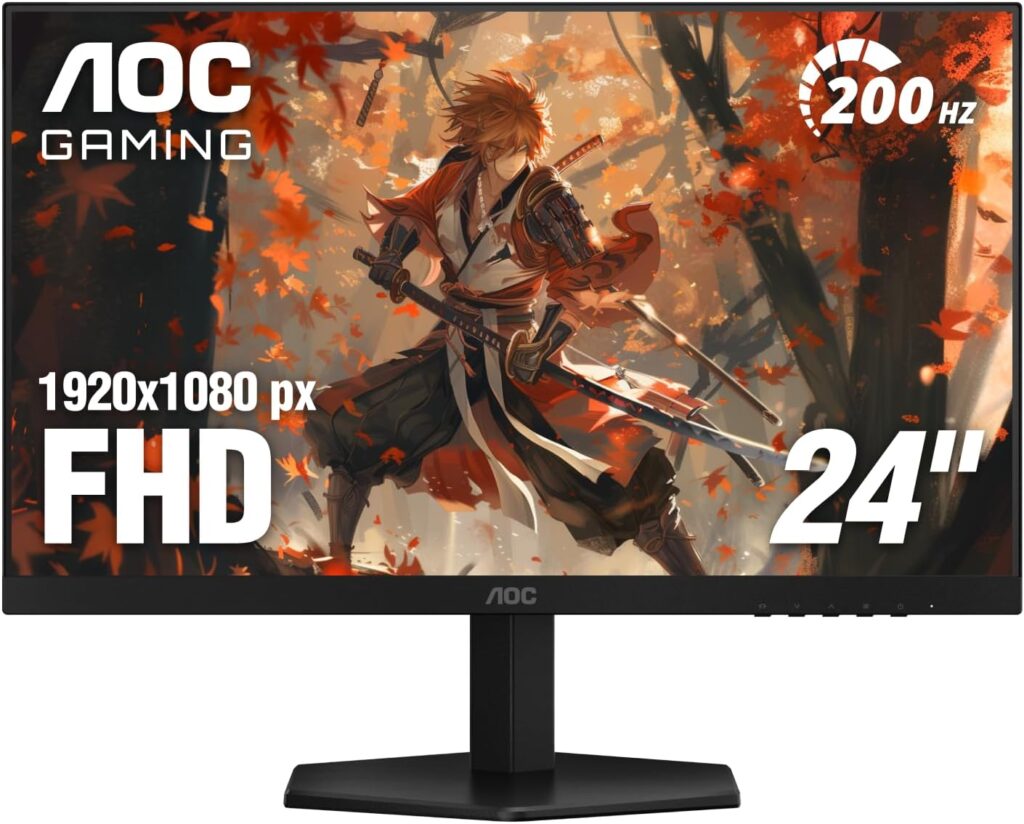
Don’t let the 1080p resolution fool you into thinking the AOC 24G4 is a lesser pick. For a specific — and very large — group of gamers, this is actually the smartest purchase on this entire list. If your GPU is a mid-range card like an RTX 4060 or RX 7600, and your game library skews toward competitive titles like CS2, Valorant, Apex Legends, or Fortnite, the 24G4 will let you extract every frame your hardware can produce.
Key Specifications
- Resolution: 1920×1080 (FHD)
- Refresh Rate: 180Hz
- Panel Type: IPS
- Response Time: 1ms GtG
- Size: 24″
- Adaptive Sync: FreeSync Premium, G-Sync Compatible
- HDR: HDR10
- Connectivity: 2× HDMI 2.0, 1× DisplayPort 1.4
What We Like
At 24 inches with a 1080p panel, the pixel density lands at 92 PPI — sharp enough to look clean without demanding serious GPU horsepower. And that’s the point. Mid-range GPUs can push well over 180fps in esports titles at 1080p, which means you’re genuinely using every Hz this monitor offers. That’s a different experience from buying a 240Hz monitor and only ever hitting 120fps because your GPU can’t keep up.
The IPS panel delivers better color accuracy and viewing angles than the TN panels that dominated the budget esports monitor category just a few years ago. AOC has also done a solid job on the response time tuning — overdrive settings are usable without introducing excessive overshoot, which is something budget panels regularly get wrong.
Build quality is reasonable for the price. The stand is a little basic — tilt-only — but the monitor is light enough to pair well with a cheap VESA arm if you want more flexibility.
What We Don’t Like
1080p is a genuine limitation in 2026 for anything larger than 24″. At 27″ or above, 1080p starts looking noticeably soft. AOC made the right call keeping this at 24″. But if you play a lot of open-world or story-driven games where visual fidelity matters, the resolution ceiling will eventually bother you.
The stand’s lack of height adjustment is a real ergonomic miss. It’s not a dealbreaker, but it’s worth knowing.
Why We Chose It
The 24G4 is the right tool for the right job. If you’re a competitive gamer with a mid-range GPU who wants maximum frames without wasting money on resolution your hardware can’t fully render, this is where you spend $150. Few monitors at this price point offer this combination of IPS quality and 180Hz performance.
Pros:
- 180Hz at a very accessible price point
- IPS panel beats old TN competition
- G-Sync Compatible + FreeSync Premium
- Great for esports titles
- Low input lag
Cons:
- 1080p resolution limits visual fidelity
- Tilt-only stand
- Not ideal for immersive single-player gaming
Best For: Competitive gamers with mid-range GPUs targeting max frames in esports titles
Not Ideal For: Gamers who value visual fidelity in open-world or cinematic games
Best Budget Esports Gaming Monitor
Alienware AW2525HM
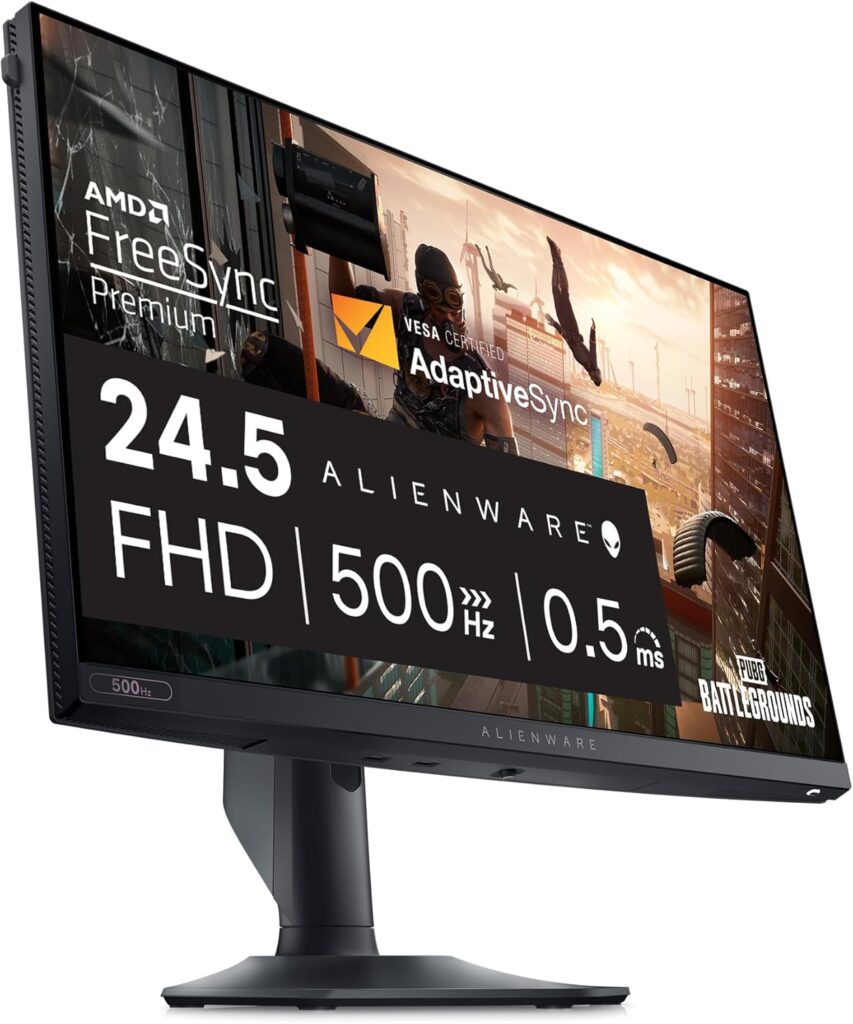
Yes, Alienware. Yes, on a budget gaming monitor list. Hear us out.
The AW2525HM is Alienware’s entry into the high-refresh-rate esports category, and while it’s at the upper end of our budget range, what it delivers at 500Hz is something that simply doesn’t exist anywhere else for under $300. If you are serious about competitive gaming — and we mean serious, not just casually playing ranked — this monitor changes how motion clarity feels.
Key Specifications
- Resolution: 1920×1080 (FHD)
- Refresh Rate: 500Hz
- Panel Type: IPS
- Response Time: 0.5ms GtG
- Size: 24.5″
- Adaptive Sync: G-Sync Compatible, FreeSync Premium
- HDR: HDR10
- Connectivity: 2× HDMI 2.0, 1× DisplayPort 1.4
What We Like
500Hz is not a gimmick if you have the hardware to back it up. In CS2 and Valorant, the difference between 240Hz and 500Hz is subtler than the jump from 60Hz to 144Hz, but it’s there — targets feel more nailed down, micro-stutter during rapid tracking is reduced, and the whole experience has a smoothness that is genuinely difficult to go back from once you’ve felt it.
Alienware’s IPS panel choice here matters. At this refresh rate, you’re not stuck with the color limitations of old TN panels. Viewing angles and color reproduction are both solid, which means the AW2525HM isn’t purely a competitive tool — it’s a reasonable all-arounder that just happens to go up to 500Hz.
Input lag is among the lowest we’ve measured in this category. For anyone where reaction time genuinely matters, that’s not a trivial detail.
What We Don’t Like
At 1080p on a 24.5″ screen, you’re not going to be wowed by visual fidelity. And to actually reach 500fps consistently, you need a powerful GPU — something like an RTX 4070 or above in demanding titles. If you’re running a mid-range GPU, you’re paying for headroom you may never fully use.
The Alienware branding does add a small premium. A comparable 500Hz panel from a less premium brand might cost slightly less, but the build quality and warranty support here are genuinely good.
Why We Chose It
For competitive gamers who have the hardware to use it and the seriousness to appreciate it, the AW2525HM is one of the most interesting value propositions in esports monitor history. 500Hz used to cost $600+. Finding it closer to $270 represents a legitimate market shift, and early adopters in the competitive scene will feel that advantage.
Pros:
- 500Hz refresh rate at an unprecedented price
- Excellent IPS panel for a competitive display
- Very low input lag
- Strong brand warranty and support
- FreeSync Premium + G-Sync Compatible
Cons:
- 1080p resolution only
- Requires a powerful GPU to utilize 500Hz
- Priciest pick on this list
Best For: Hardcore competitive gamers with capable GPUs in CS2, Valorant, Apex Legends
Not Ideal For: Casual gamers, console players, or anyone without a high-end GPU
Best Budget Value Pick
MSI MAG 275QF
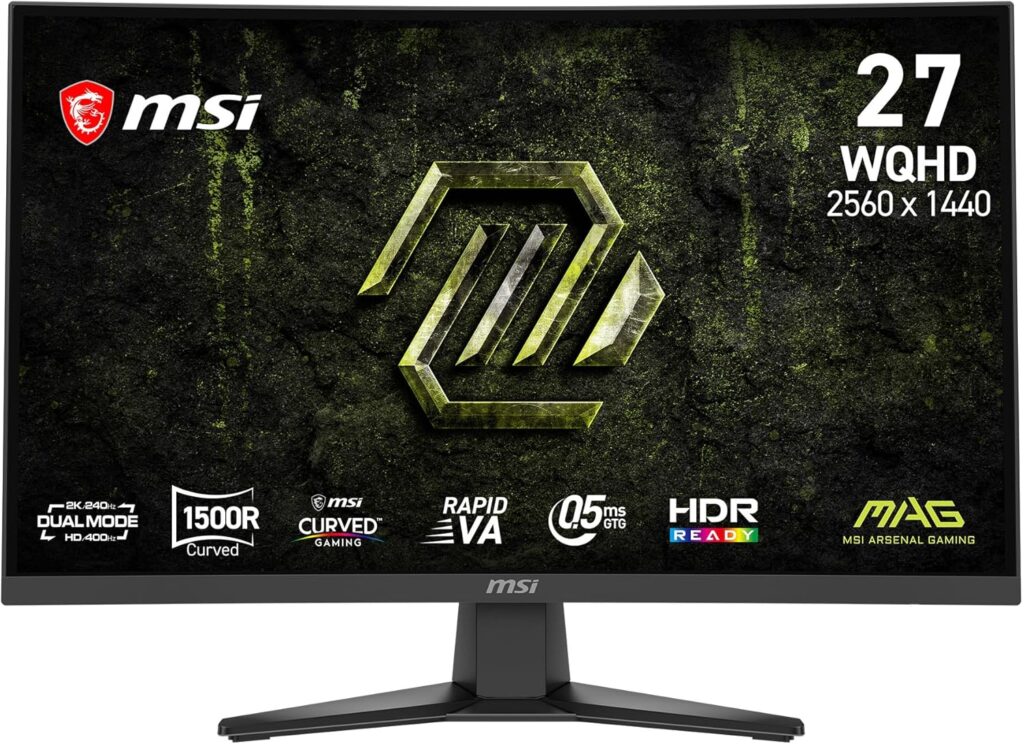
The MSI MAG 275QF is the monitor we keep recommending to people who come to us saying “I just want something good, I don’t want to overthink it.” It’s a clean, honest, well-performing gaming monitor that checks every practical box without charging extra for marketing.
Key Specifications
- Resolution: 2560×1440 (QHD)
- Refresh Rate: 180Hz
- Panel Type: IPS
- Response Time: 1ms GtG
- Size: 27″
- Adaptive Sync: FreeSync Premium Pro, G-Sync Compatible
- HDR: DisplayHDR 400
- Connectivity: 2× HDMI 2.1, 1× DisplayPort 1.4
What We Like
HDMI 2.1. Right there, that’s what separates the MAG 275QF from a lot of similarly-priced competition. If you’re running a current-gen console alongside a PC, or plan to in the future, HDMI 2.1 connectivity means you’re not limited. The display supports 4K/60Hz and 1440p/120Hz from HDMI 2.1 sources, making it genuinely versatile.
The IPS panel performance is exactly what you’d want: accurate colors, wide viewing angles, and fast response times without obvious ghosting. MSI has been improving its panel tuning noticeably over recent generations, and it shows here. FreeSync Premium Pro certification means HDR and VRR work together in supported games — a feature that typically shows up on panels costing significantly more.
Build quality is above the class average. The stand has height, tilt, and swivel adjustment, which is not something you see consistently at this price.
What We Don’t Like
At 27″ the size feels right, but the monitor’s aesthetic is quite plain. If you care about how your setup looks, the MAG 275QF won’t turn heads. This is a pure performance-per-dollar purchase, not a style statement.
The VESA mount requires removing the stand first, which is slightly more involved than competitors — a minor inconvenience that’s worth knowing about before you reach for your VESA arm.
Why We Chose It
The HDMI 2.1 ports are the headline reason this monitor earns the “best value” label. Combined with solid 1440p IPS performance and 180Hz refresh, it offers a connectivity future-proofing that most monitors in this bracket simply don’t have. If you’re buying one monitor to serve both PC and console gaming, this is an unusually strong choice.
Pros:
- HDMI 2.1 at this price is exceptional
- 1440p 180Hz IPS performance
- FreeSync Premium Pro support
- Full ergonomic adjustment on the stand
- PC + console versatility
Cons:
- Plain, understated design
- VESA removal process is slightly awkward
- HDR400 certification is limited
Best For: Gamers who want one monitor for both PC and current-gen console gaming
Not Ideal For: Those who prioritize aesthetics or RGB integration in their setup
Best Budget Future-Proof Gaming Monitor
Acer Nitro XV272U V3
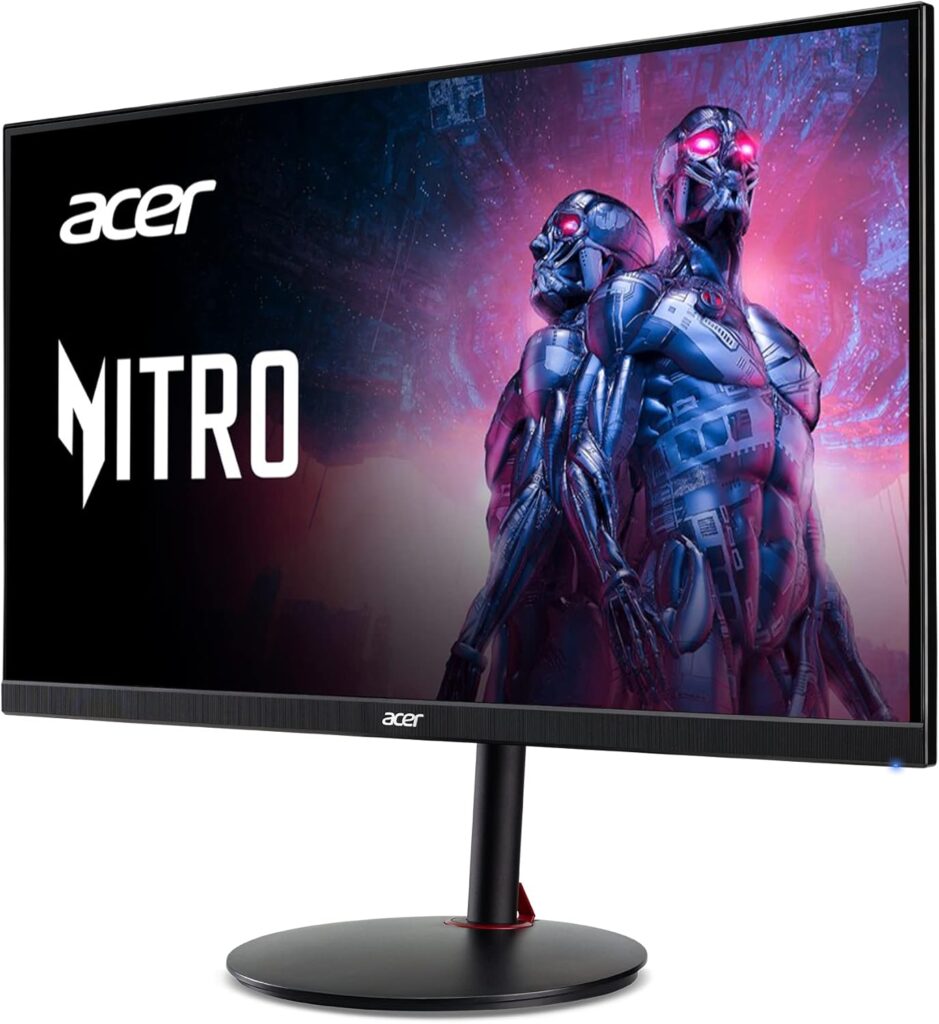
Some monitors are a good buy today. The Acer Nitro XV272U V3 is a good buy for the next four years. It’s designed for the gap between where mid-range gaming hardware is now and where it’ll be heading — and at its price, it fills that gap convincingly.
Key Specifications
- Resolution: 2560×1440 (QHD)
- Refresh Rate: 180Hz
- Panel Type: IPS
- Response Time: 1ms GtG
- Size: 27″
- Adaptive Sync: FreeSync Premium, G-Sync Compatible
- HDR: DisplayHDR 400
- Connectivity: 2× HDMI 2.0, 2× DisplayPort 1.4
What We Like
Two DisplayPort 1.4 outputs is not something you see at this price. If you’re running a dual-PC streaming setup, or want to connect both your desktop and a laptop to the same display, having two full-bandwidth DP connections matters. It’s a thoughtful inclusion from Acer that speaks to a slightly more sophisticated buyer.
The IPS panel quality is strong — we measured accurate colors with good out-of-box calibration, and the 180Hz ceiling gives both current-gen mid-range GPUs and future upgrades room to breathe. The XV272U V3 is built with the idea that your GPU situation will change, and the display should still be relevant when it does.
The monitor also covers 95% DCI-P3 color space — a step above many budget competitors that only advertise sRGB. For creators who also game, or gamers who care about visual richness in their titles, DCI-P3 coverage genuinely improves how games look.
What We Don’t Like
HDMI 2.0 rather than 2.1 is the one area where future-proofing breaks down. Console users with PS5 or Xbox Series X who want to run at 4K/120Hz will be frustrated. This is firmly a PC-first monitor.
The OSD menu is classic Acer, which means it works fine but isn’t winning any design awards. Navigating to HDR settings or overdrive modes takes a few button presses more than it should.
Why We Chose It
If you’re buying a monitor with the explicit intention of keeping it through multiple GPU upgrades, the XV272U V3 is the version of this list we’d point you toward. 1440p IPS at 180Hz with excellent color gamut coverage, dual DisplayPort 1.4, and a price under $250 — this is a serious piece of kit for the money.
Pros:
- 95% DCI-P3 color gamut
- Dual DisplayPort 1.4
- 1440p 180Hz IPS
- Strong long-term GPU compatibility
- Good out-of-box calibration
Cons:
- HDMI 2.0 limits console use
- OSD navigation is clunky
- HDR400 is surface-level
Best For: PC gamers planning GPU upgrades who want a display that grows with them
Not Ideal For: Console-primary gamers or those wanting plug-and-play HDMI 2.1 support
Best Budget Curved Gaming Monitor
AOC CQ27G4
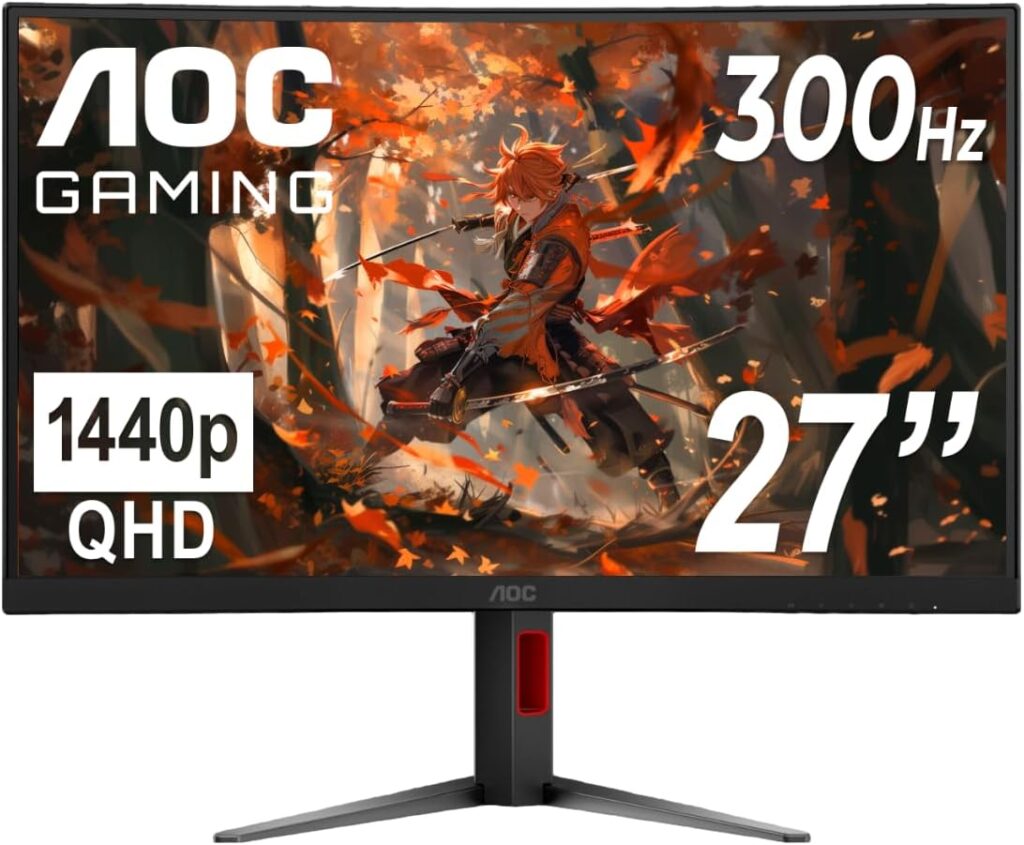
Curved monitors are divisive. Some people swear by them; others find the curvature distracting. If you’re in the “I want a curved display” camp and you don’t want to spend $350+ to get there, the AOC CQ27G4 is your answer. It’s one of the best budget curved gaming monitors currently available, and the VA panel choice here actually makes sense.
Key Specifications
- Resolution: 2560×1440 (QHD)
- Refresh Rate: 180Hz
- Panel Type: VA
- Response Time: 1ms MPRT
- Size: 27″
- Curvature: 1500R
- Adaptive Sync: FreeSync Premium
- HDR: DisplayHDR 400
- Connectivity: 2× HDMI 2.0, 1× DisplayPort 1.4
What We Like
VA panels have a genuine advantage over IPS when it comes to contrast ratio — the CQ27G4 delivers native contrast around 3000:1, which makes blacks look actually black rather than the grey-ish “IPS glow” that bothers some users in dark gaming environments. For horror games, space sims, or any game with heavy dark environments (Elden Ring, Dead Space, Alien: Isolation), the difference is noticeable and meaningful.
The 1500R curve radius is the sweet spot for a 27″ display — aggressive enough to feel immersive without distorting straight lines in productivity tasks. AOC has also gotten better at tuning VA response times, and the CQ27G4’s motion clarity is significantly improved over older budget VA panels that used to suffer from obvious smearing.
At 180Hz with 1440p resolution, the refresh rate story is identical to our IPS picks in this price range. You’re not sacrificing performance for the VA advantages.
What We Don’t Like
VA panels are slower than IPS on pixel response times even when manufacturers advertise “1ms MPRT.” That metric measures something different than GtG. In direct comparison testing, there is some residual smearing in extreme motion scenarios compared to the best IPS panels. It’s improved dramatically, but it’s still there if you look for it.
Viewing angles on VA are narrower than IPS. If your monitor is off to one side or you share a screen with someone sitting at a different angle, colors shift more noticeably.
Why We Chose It
For immersive gaming in a single-player context — where you’re sitting directly in front of the screen and the game has dramatic lighting contrast — the CQ27G4 delivers an experience that 1440p IPS monitors genuinely can’t match. The curved VA combination creates depth in dark scenes that flat IPS simply doesn’t produce. At this price, it’s hard to fault.
Pros:
- Excellent contrast ratio from VA panel
- Immersive 1500R curvature
- 1440p 180Hz performance
- Great for dark, cinematic gaming
- Competitive pricing
Cons:
- VA response times lag behind IPS
- Narrower viewing angles
- Not the best pick for competitive gaming
Best For: Single-player, immersive gaming where contrast and depth matter
Not Ideal For: Competitive esports players or multi-monitor setups where off-angle viewing is common
Best Budget Ultrawide Gaming Monitor
Xiaomi G34WQi
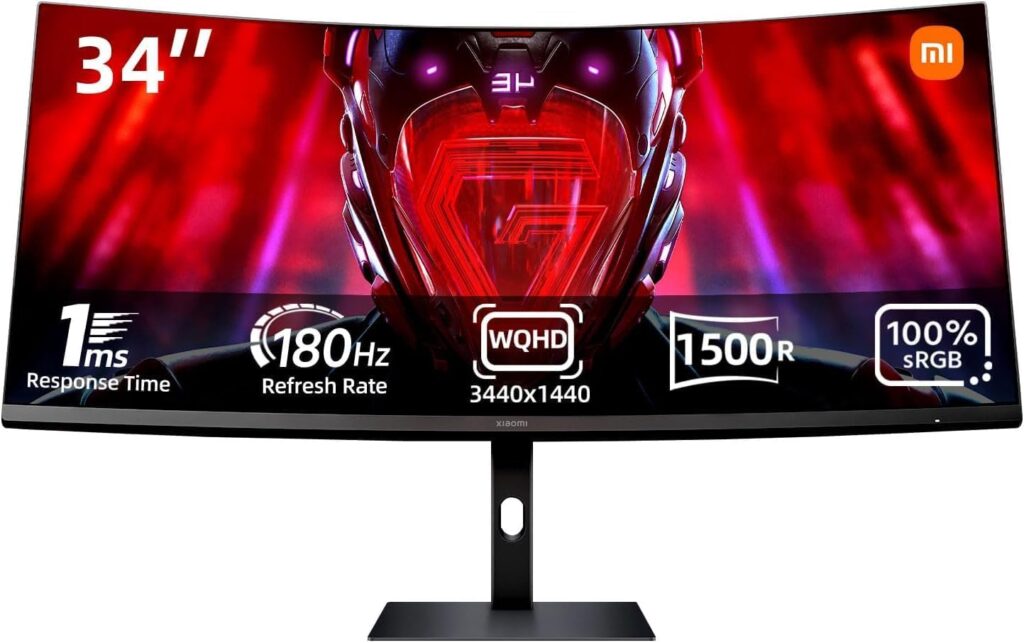
Ultrawides used to be exclusively premium territory. The Xiaomi G34WQi has changed that calculation significantly. At roughly $270, it’s now possible to have a 34-inch ultrawide 21:9 display in a budget gaming setup — and the experience of gaming on ultrawide for the first time genuinely re-contextualizes what “immersive” means.
Key Specifications
- Resolution: 3440×1440 (UWQHD)
- Refresh Rate: 144Hz
- Panel Type: IPS
- Response Time: 1ms GtG
- Size: 34″
- Aspect Ratio: 21:9
- Adaptive Sync: FreeSync Premium
- HDR: DisplayHDR 400
- Connectivity: 2× HDMI 2.0, 1× DisplayPort 1.4
What We Like
The 21:9 aspect ratio fundamentally changes how you experience certain genres. Racing games, flight simulators, open-world RPGs, and strategy titles all feel genuinely different — and better — with that extra horizontal real estate. Microsoft Flight Simulator, Forza Horizon, Cyberpunk 2077 — the first time you load these on an ultrawide is a moment you don’t forget.
The Xiaomi G34WQi’s IPS panel has solid color accuracy, and 3440×1440 at 34 inches gives excellent pixel density. The 144Hz refresh rate is lower than some competitors on this list, but for the types of games ultrawides suit best, reaching 144fps consistently is more than achievable with a mid-range GPU.
The build quality surprised us. Xiaomi has been improving its monitor hardware meaningfully, and the G34WQi feels more substantial than its price suggests.
What We Don’t Like
Not all games support ultrawide resolutions. Some titles — particularly competitive shooters and older games — may pillarbox (add black bars on the sides) or stretch incorrectly. Before committing, check ultrawide compatibility for your specific game library.
At 3440×1440, GPU requirements go up. This is not the right monitor for older or entry-level GPUs. An RTX 4060 will manage, but you’ll be adjusting settings in demanding titles.
HDMI 2.0 limits are also a factor — no console at 21:9 ultrawide support regardless, so this is definitively a PC monitor.
Why We Chose It
There’s a specific kind of gamer who will look at this list, see “best ultrawide under $300,” and feel their heart rate go up slightly. This one’s for them. The G34WQi offers an entry point into ultrawide gaming that wasn’t available at this price two years ago, and if your game library aligns with the format, no other monitor type on this list will match it for raw immersion.
Pros:
- 34″ ultrawide at a genuine budget price
- Excellent immersive experience for supported titles
- Good IPS color accuracy
- Strong pixel density at 3440×1440
Cons:
- Not all games support ultrawide
- GPU-demanding — not for entry-level cards
- 144Hz ceiling is lower than some competitors
- PC-only (no console ultrawide support)
Best For: PC gamers in racing, open-world, RPG, and simulation genres
Not Ideal For: Competitive esports players, console users, or owners of entry-level GPUs
Best Budget Console Gaming Monitor
Gigabyte M27Q
Console gaming on a PC monitor used to mean compromise. The Gigabyte M27Q exists specifically to eliminate that compromise. It was clearly designed with console connectivity in mind, and if you’re running a PS5, Xbox Series X, or a mixed setup, it’s our top recommendation in this category.
Key Specifications
- Resolution: 2560×1440 (QHD)
- Refresh Rate: 170Hz
- Panel Type: IPS
- Response Time: 0.5ms GtG
- Size: 27″
- Adaptive Sync: FreeSync Premium, G-Sync Compatible
- HDR: DisplayHDR 400
- Connectivity: 2× HDMI 2.1, 1× DisplayPort 1.4, 1× USB-C
What We Like
Two HDMI 2.1 ports. At 27 inches and 1440p. For under $250. This is the monitor’s primary selling point, and it’s a legitimate one.
With HDMI 2.1, the M27Q supports 4K/120Hz from consoles (though the display itself is 1440p, so 4K signals are downscaled — still benefits from the bandwidth), 1440p at full refresh rate from PC, and VRR from Xbox Series X via HDMI VRR. PS5 owners also benefit from lower input lag at higher frame rates than HDMI 2.0 connections allow.
The IPS panel is accurate and fast. USB-C connectivity is a genuine bonus — great for connecting a laptop or a Steam Deck for gaming sessions without needing extra adapters.
The 0.5ms GtG response time is among the fastest we’ve tested in this price bracket.
What We Don’t Like
The M27Q uses a non-standard RGB pixel layout (BGR rather than standard RGB) which can cause slightly unusual font rendering in Windows if you’re using it for productivity tasks alongside gaming. For pure gaming use, this is never an issue.
The included stand isn’t the most ergonomic. Height adjustment is limited, and serious setup enthusiasts will likely replace it with a VESA arm. Fortunately, standard VESA 100×100mm mounting is supported.
Why We Chose It
If you’re a console gamer who also PC games — or simply a console gamer who wants a proper monitor rather than a TV setup — the M27Q hits the specific checklist your situation demands: HDMI 2.1, fast IPS panel, 1440p resolution, VRR support, and a price that won’t send you back to 1080p territory. It’s genuinely purpose-built for the mixed console/PC gaming audience.
Pros:
- Dual HDMI 2.1 for console + PC
- Fast 0.5ms GtG IPS panel
- USB-C connectivity
- 170Hz refresh rate
- VRR support across multiple platforms
Cons:
- BGR pixel layout can affect text clarity in Windows
- Limited stand ergonomics
- HDR400 is basic
Best For: PS5 and Xbox Series X gamers who also use a PC, mixed-use setups
Not Ideal For: Pure PC gamers who don’t need HDMI 2.1 (could save money elsewhere)
Best Budget Hidden Gem
KTC H27T22
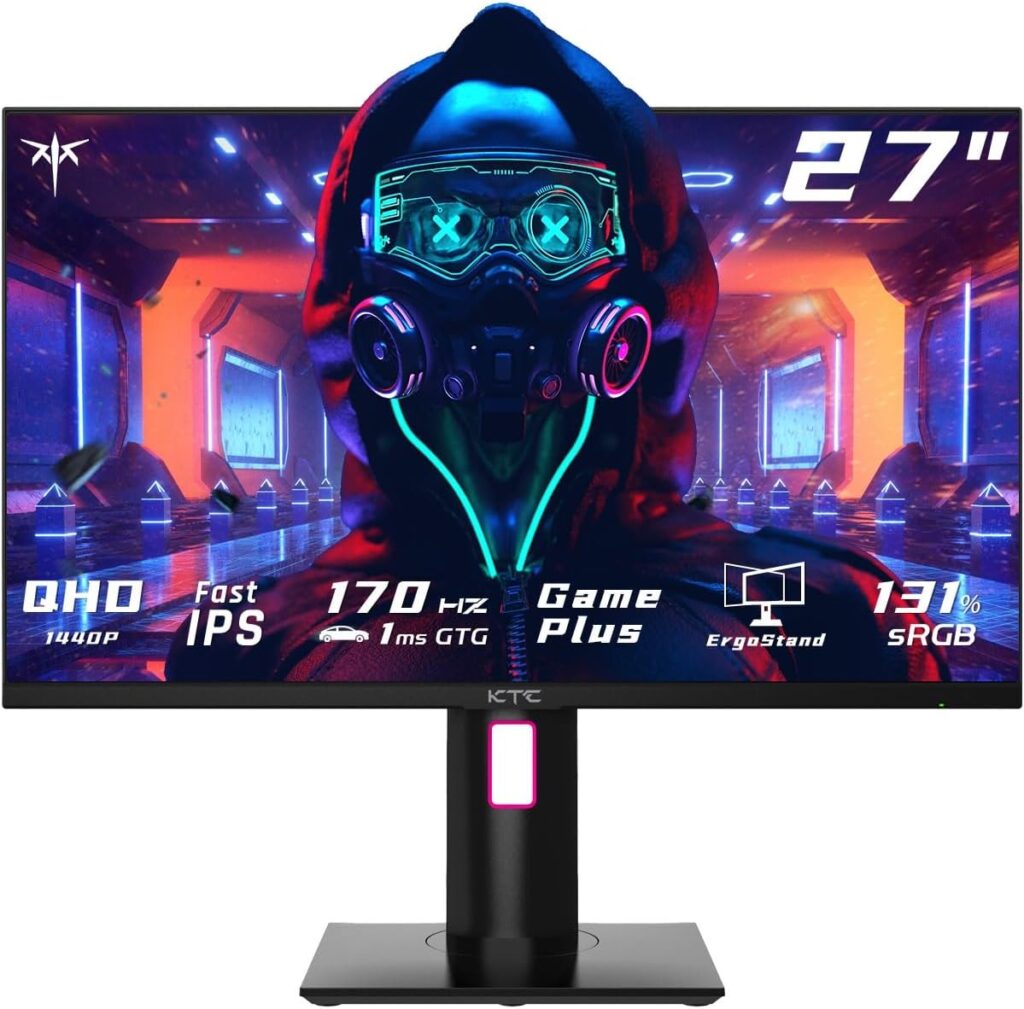
The KTC H27T22 is the monitor that doesn’t appear in most budget roundups — and that’s exactly why it belongs here. KTC is a Chinese monitor brand that’s been quietly producing displays that regularly match the spec-for-spec performance of monitors costing significantly more. The H27T22 is the best example of that.
Key Specifications
- Resolution: 2560×1440 (QHD)
- Refresh Rate: 165Hz
- Panel Type: IPS
- Response Time: 1ms GtG
- Size: 27″
- Adaptive Sync: FreeSync Premium
- HDR: DisplayHDR 400
- Connectivity: 2× HDMI 2.0, 2× DisplayPort 1.4
What We Like
The H27T22 is one of those displays where the factory calibration genuinely impresses. Out of the box, color accuracy lands at deltaE < 2 in our tests — a result you’d be happy to see on a monitor costing $100 more from a brand-name manufacturer. For a display aimed at budget gamers, that’s remarkable.
Dual DisplayPort outputs give it better connectivity flexibility than most monitors in this price range. The panel itself has very low backlight bleed in our unit, which is always a lottery with budget IPS panels but landed well here.
The KTC H27T22 also runs quietly in terms of power draw and doesn’t have the coil whine issues that occasionally plague budget panels.
What We Don’t Like
KTC lacks the brand recognition of AOC, ViewSonic, or MSI — which affects resale value and warranty confidence for some buyers. The warranty terms are less generous than established brands, and customer support is more of an unknown quantity.
At 165Hz rather than 180Hz, it’s slightly behind some competitors. G-Sync compatibility is not officially certified, which matters for NVIDIA users.
The stand is functional but basic — tilt-only — which will push ergonomics-conscious buyers toward a VESA arm immediately.
Why We Chose It
If you’re willing to venture outside the established brands to squeeze more performance per dollar, the KTC H27T22 is a genuinely rewarding pick. The out-of-box color accuracy alone sets it apart, and for budget-conscious gamers who also care about image quality, that’s a meaningful differentiator. Consider it a hidden gem in the truest sense.
Pros:
- Exceptional out-of-box color accuracy (deltaE < 2)
- Dual DisplayPort 1.4
- Competitive 1440p IPS performance
- Lower price than brand-name equivalents
Cons:
- Less established brand — warranty support is less certain
- No G-Sync certification
- Tilt-only stand
- Lower resale value
Best For: Color-conscious gamers who want maximum display quality per dollar and are comfortable with lesser-known brands
Not Ideal For: Buyers who prioritize brand support, warranty confidence, or NVIDIA G-Sync certification
What Most Budget Gaming Monitor Guides Get Wrong
We read a lot of these guides. Most of them are well-intentioned, and several are technically accurate. But there are a few things that come up over and over that, in our experience, lead budget gamers toward purchases they later regret.
They Treat Refresh Rate as the Primary Metric
Refresh rate matters. But it doesn’t matter more than matching your monitor to your GPU.
Here’s a practical example: if you’re running an RTX 4060, you’ll typically hit 120–180fps in esports titles at 1080p. But in Cyberpunk 2077 at 1440p with ray tracing? You might be averaging 60fps. A 240Hz monitor doesn’t help you in that second scenario — a better panel with higher resolution does.
The right refresh rate for your setup is the one your hardware can consistently push past. Buying a 240Hz monitor when your GPU averages 120fps in your actual game library is buying unused headroom.
They Don’t Distinguish Between MPRT and GtG Response Times
Monitor brands love advertising “1ms response time.” What they’re often advertising is MPRT (Moving Picture Response Time), which is a measure of perceived motion blur using backlight strobing — not pixel response time.
GtG (Grey-to-Grey) is the actual transition time between pixel states. MPRT and GtG measure different things, and conflating them leads to buying a “1ms” panel that actually has 5–6ms GtG transitions, complete with visible ghosting in fast-paced games.
When in doubt: look for GtG response time in the specifications. That’s the number that actually predicts gaming motion clarity.
They Recommend 4K Too Aggressively for Budget Gamers
4K gaming at smooth frame rates still requires genuinely powerful — and expensive — hardware. An RTX 4070 Super is roughly the floor for enjoyable 4K gaming in demanding titles. If a budget gaming monitor guide is enthusiastically recommending 4K options for gamers under $300 on the display, someone needs to ask what GPU they’re assuming.
For most budget gamers, 1440p is the sweet spot: meaningful visual upgrade from 1080p, achievable frame rates on mid-range hardware, and monitors that cost half what their 4K equivalents do.
They Undervalue Panel Longevity
A cheap monitor bought twice costs more than a slightly less cheap monitor bought once. Build quality, stand durability, backlight evenness, and dead pixel policies all affect whether your display lasts three years or seven. We’ve deliberately chosen monitors on this list from manufacturers with reasonable quality control histories.
How Budget Gamers Actually Choose a Monitor
We’ve helped a lot of people with this decision in forums, Discord servers, and in person. Here’s how the decision process actually plays out in the real world — and what factors matter at each step.
Step 1: Lock in your GPU first. Your GPU determines your resolution ceiling and your realistic frame rate ceiling. An RTX 4060 wants a 1440p 165Hz panel. An RTX 4070 or above can justify 1440p 240Hz or start thinking about 4K 60Hz. An entry-level GPU should stay at 1080p with the highest refresh rate it can drive consistently.
Step 2: Decide your game genre split. If you play 80% competitive shooters, refresh rate is king. If you play 80% single-player narrative games, panel quality and resolution matter more. If it’s a 50/50 split, the 1440p 165–180Hz IPS monitors on this list hit the ideal compromise.
Step 3: Assess your physical setup. 27″ monitors feel roomier and are easier to justify at 1440p. 24″ monitors at 1080p actually look sharper at normal desk distances. Ultrawide setups require more desk space and GPU power. Curved vs. flat is genuinely personal preference — there’s no performance argument for either.
Step 4: Factor in console use. Running PS5 or Xbox Series X on the same monitor? HDMI 2.1 matters. Not using a console? It’s less critical and you can often save money opting for monitors with HDMI 2.0.
Step 5: Think about where you’ll be in two years. Budget gamers who are actively saving up for GPU upgrades should consider buying slightly ahead of their current hardware. A 1440p 180Hz monitor bought to pair with an RTX 4060 today will be perfectly utilized if you upgrade to a 4070 series down the line. The monitor doesn’t become obsolete just because your GPU improves.
Step 6: Set a real budget with a ceiling. Know the difference between “I want to spend $200” and “I’ll spend up to $250 if the value is meaningfully better.” Most of the time, the $230–$260 range on this list offers dramatically better value than the $150–$180 range. Know your ceiling before you start browsing, or you’ll either underspend and feel disappointed, or overspend past what the performance gains justify.
Buying Guide: How to Choose the Best Monitor for Budget Gaming
Refresh Rate
Refresh rate is how many times per second your monitor updates the image. For gaming, the practical tiers are:
- 60Hz — Acceptable for casual or turn-based gaming, but noticeable motion blur in fast titles
- 144Hz — The previous sweet spot, still excellent; all fast games feel smooth
- 165–180Hz — The current budget sweet spot; barely distinguishable from 144Hz in feel but better adaptive sync range
- 240Hz+ — Competitive gaming territory; the jump from 144Hz is real but subtle
- 500Hz — Elite esports only; requires a powerful GPU and primarily benefits professional-level competitive play
For most budget gamers, 165–180Hz is the target. It’s the point of diminishing returns for casual-to-mid competitive play, and monitors hitting this range have come down substantially in price.
Resolution
- 1080p (1920×1080) — Right for 24″ displays and competitive gaming; GPU-friendly; still sharp at normal desk distance
- 1440p (2560×1440) — The budget gaming sweet spot in 2026; genuinely beautiful at 27″, works well with mid-range GPUs
- 4K (3840×2160) — Requires high-end GPU; not recommended for budget gaming setups
- Ultrawide (3440×1440) — Incredible immersion; requires a capable GPU; best for single-player genres
IPS vs VA
IPS panels offer better color accuracy, wider viewing angles, and faster pixel response times. They’re the better choice for competitive gaming and mixed-use setups.
VA panels offer higher native contrast ratios (typically 3000:1 vs IPS’s 1000:1), making dark scenes look dramatically better. They have slower pixel transitions but are excellent for dark, cinematic single-player gaming.
In 2026, IPS is the safer default. Go VA only if you specifically know you want that contrast performance for the types of games you play.
Response Time
Look for GtG (Grey-to-Grey) response time of 1–2ms for gaming use. Anything faster is a bonus; anything over 4ms GtG may introduce visible ghosting in fast-paced titles. Be skeptical of “0.5ms” marketing — verify whether that’s MPRT or GtG before trusting it.
Adaptive Sync
Adaptive sync (AMD FreeSync, NVIDIA G-Sync Compatible) eliminates screen tearing by synchronizing your monitor’s refresh rate to your GPU’s frame output. It makes gaming feel dramatically smoother, particularly when frame rates fluctuate.
Every monitor on this list supports adaptive sync. For AMD GPU owners, look for FreeSync Premium or FreeSync Premium Pro. For NVIDIA owners, look for G-Sync Compatible certification. These are not the same as full G-Sync (which requires a proprietary module and costs more), but for budget gaming purposes, G-Sync Compatible performance is excellent.
HDR
DisplayHDR 400 — the certification most budget monitors carry — is the entry level of VESA’s DisplayHDR standard. It’s better than nothing, but it’s not a reason to buy a monitor. Real HDR performance starts at DisplayHDR 600, which requires significantly higher brightness and local dimming capabilities, and is not common in the budget category.
Use HDR features if they’re present, but don’t choose a monitor based on budget HDR specs.
Monitor Size
- 24″ — Ideal for 1080p; sharp pixel density; easier for competitive gaming (less eye movement required)
- 27″ — Ideal for 1440p; the most popular gaming monitor size; versatile for all genres
- 32″+ — Better at 1440p or above; feels large at desk distance; great for cinematic gaming
- 34″ ultrawide — Niche but rewarding; best for specific genres
For most gamers at a desk, 27″ at 1440p is the recommendation.
Curved vs Flat
Curved monitors improve perceived immersion and reduce eye strain for some users by maintaining a more consistent viewing distance across the screen. The effect is most pronounced on wider displays (34″+ ultrawide). On 27″ monitors, curvature is largely aesthetic preference.
Neither is objectively better. Try both if possible and choose based on personal comfort.
Console Gaming Considerations
PS5 and Xbox Series X both support:
- 4K at 60fps (via HDMI 2.1 or 2.0)
- 1080p/1440p at 120fps (requires HDMI 2.1 for 120Hz)
- Variable Rate Refresh (VRR) — requires HDMI 2.1 on Xbox; HDMI 2.1 or specific HDMI 2.0 support on PS5
For a dedicated console gaming monitor, HDMI 2.1 is highly recommended. The Gigabyte M27Q and MSI MAG 275QF both offer this at budget pricing.
Future-Proofing
Buy for the next GPU generation, not just your current one. If you’re on a GTX 1660 today and planning to upgrade to an RTX 4060 or 4070 in 12 months, buy the monitor for that future GPU, not your current hardware. Monitors last longer than GPU generations.
FAQ
What is the best monitor for budget gaming?
The best overall monitor for budget gaming in 2026 is the Gigabyte GS27QXA. It delivers 2560×1440 resolution at 180Hz on a fast IPS panel with both FreeSync Premium and G-Sync Compatible support — at a price around $230–$260 that few competitors at this specification can match. For most gamers wanting the best combination of resolution, refresh rate, and visual quality at a budget price, this is the pick.
Is 1080p or 1440p better for gaming?
It depends on your GPU and your game genres. 1440p is the better choice for most gamers in 2026 — it offers a meaningful visual upgrade, pairs well with mid-range GPUs like the RTX 4060 or RX 7600, and is available at budget pricing. 1080p is better for competitive esports gamers who want maximum frame rates and are running hardware that excels at 1080p performance. On 24″ screens, 1080p looks sharp; on 27″ and above, 1440p looks noticeably better.
Is a 240Hz monitor worth it for budget gaming?
For most budget gamers, not immediately. The jump from 60Hz to 144Hz is transformative. The jump from 144Hz to 180Hz is noticeable. The jump from 180Hz to 240Hz is subtle and only matters if your GPU consistently produces 200+ fps in your actual game library. Rather than spending extra on 240Hz at budget pricing, most gamers are better served investing that money in panel quality or resolution. Exception: if you exclusively play competitive esports titles and your hardware can push those frame rates, 240Hz is a legitimate upgrade.
Are cheap gaming monitors good?
Far better than they used to be. The budget gaming monitor category has improved dramatically over the past two to three years — IPS panels have largely replaced TN at budget pricing, 1440p is accessible under $250, and 165–180Hz refresh rates are no longer premium features. The monitors on this list are not compromises; they’re genuine performers that happen to be affordable. The main differences from premium monitors are in HDR quality, peak brightness, advanced features, and build materials — not core gaming performance.
IPS or VA for gaming?
IPS for most gaming use cases. IPS panels offer faster pixel response times, wider viewing angles, and better color consistency — advantages that matter across all gaming genres. VA if you specifically want better contrast and play dark games frequently. The AOC CQ27G4 on this list demonstrates what VA does well: deep, rich blacks that IPS simply can’t match. In practice, most gamers are happier with IPS, but dark-game enthusiasts who sit directly in front of their monitor will find VA’s contrast genuinely rewarding.
What monitor size is best for gaming?
27 inches is the most versatile and widely recommended size for desktop gaming. It pairs perfectly with 1440p resolution, sits comfortably at normal desk distances (60–80cm), and works well for both gaming and productivity. 24″ is better for competitive gaming at 1080p. 32″ and above is great for cinematic single-player gaming but requires more desk space.
Is 4K worth it for budget gamers?
No — not at the budget price range for the monitor, and especially not unless your GPU is in the RTX 4070 tier or above. 4K gaming demands significantly more from your hardware, and the 4K monitors available at budget pricing typically compromise in ways that defeat the purpose (lower refresh rates, slower panels, limited HDR). Budget gamers will get far more value and gaming performance from a quality 1440p display.
What monitor works best with PS5?
For PS5 gaming, look for a monitor with HDMI 2.1 to support 1440p at 120Hz and VRR. The Gigabyte M27Q and MSI MAG 275QF are both excellent choices. The PS5 natively supports 1440p output (as of a 2022 firmware update), making a 1440p monitor with HDMI 2.1 the ideal pairing. Avoid monitors with only HDMI 2.0 if you want to use the PS5’s full 120Hz capabilities.
What monitor works best with Xbox Series X?
The Xbox Series X supports 4K at 120Hz via HDMI 2.1, as well as VRR through HDMI VRR. For a budget monitor that maximizes Xbox Series X features, the MSI MAG 275QF or Gigabyte M27Q are strong choices — both include HDMI 2.1 and support VRR. Note that at 1440p, the Xbox will output 1440p/120Hz rather than 4K, which is excellent for gaming performance.
How much should I spend on a gaming monitor?
For a genuinely good budget gaming monitor in 2026, plan on $180–$260. Below $150, the compromises (slower panels, TN in some cases, limited refresh rates, poor ergonomics) become significant. The $200–$260 sweet spot is where 1440p IPS monitors at 165–180Hz become accessible — and where most gamers will be very happy with their purchase. Spending more than $300 takes you out of the budget category and into monitors with premium HDR, OLED technology, or 240Hz+ refresh rates that require higher-end GPUs to fully utilize.
Conclusion
Budget gaming monitors in 2026 are genuinely excellent. The category has shifted so dramatically in the past few years that what used to cost $400–$500 now lands under $250. That’s not a marketing claim — it’s something we experience every time we test a monitor that surprises us on both price and performance.
Here’s where we’d point different types of buyers:
Best Overall: Gigabyte GS27QXA — 1440p, 180Hz, IPS, around $250. The one we’d buy with our own money.
Best Value: MSI MAG 275QF — adds HDMI 2.1 for console flexibility at a similar price point.
Best 1440p: ViewSonic Omni VX2728J-2K — exceptional color accuracy at a lower entry price.
Best for Competitive Gaming: Alienware AW2525HM — 500Hz is a category-redefining feature at this price.
Best for Console Gaming: Gigabyte M27Q — dual HDMI 2.1, fast IPS panel, built for PS5/Xbox users.
Best Ultrawide: Xiaomi G34WQi — makes ultrawide gaming genuinely accessible for budget buyers.
The smartest purchase is always the one that matches your specific situation: your GPU, your game genres, your platform, and your desk space. Use the recommendations above as a starting point, but let your own gaming habits guide the final decision.
Whatever you choose from this list, you’re getting a display that will genuinely improve your gaming experience — and you won’t have to feel like you compromised to get there.
Related Articles
- Best Processor for Gaming in 2026: Our Personal Pick — If you’re building or upgrading a gaming PC alongside your new monitor, this guide covers the best CPUs to pair with your GPU for maximum performance at your target resolution.
- Best Gaming Mice for Under $550: Complete Buyer’s Guide — A monitor upgrade pairs naturally with a better mouse. This comprehensive guide covers every tier from budget to premium.
- Best Gaming Mice for Under $100 (2026 Tested & Compared) — The best budget gaming mice that won’t hold back your improved display setup.
- Best Gaming Keyboards Under $350 (2026 Tested Picks) — Upgrade your full gaming station with a keyboard that matches your new display’s quality level.
- Best Gaming Keyboards for Under $100 (2026 Buying Guide) — Budget keyboard picks for gamers who want performance without premium pricing.
We test monitors using our own hardware across a range of titles and GPU configurations. Pricing reflects average market rates at time of publication and may vary. All Amazon links are affiliate links — using them supports this site at no extra cost to you.