


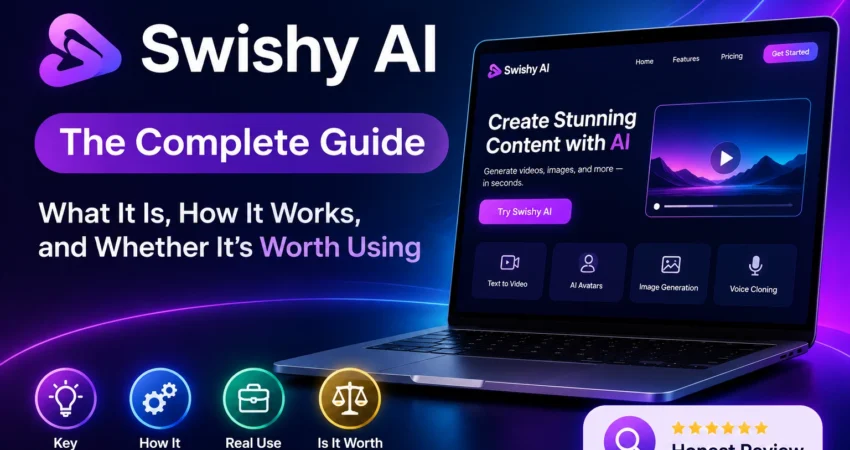
TL;DR: Swishy AI is a browser-based AI motion-design tool at swishy.ai that turns text prompts into finished animations — kinetic typography, logo reveals, social clips, UI motion, and short graphics — without touching keyframes or After Effects. It’s genuinely useful for creators, marketers, and solo founders who need fast, on-brand motion and don’t have (or want) an animation background. It’s not a replacement for After Effects on complex, expression-driven, or broadcast-grade work, and its export options are more limited than professional NLEs expect. If you need “good enough, fast” motion graphics, it’s worth trying the free tier. If you need frame-level control or ProRes-grade transparent export, keep After Effects or a specialist tool in your stack alongside it.
Introduction
If you’ve ever needed a 10-second animated intro, a bouncing call-to-action, or an animated logo for a launch post, you’ve probably hit the same wall: After Effects has a steep learning curve, freelancers are slow or expensive, and free template tools (Canva, CapCut) often look generic. That gap — “I need motion graphics but I’m not a motion designer” — is exactly why people search for Swishy AI.
This guide covers what Swishy actually is, how it works under the hood, a step-by-step walkthrough of using it, where it clearly helps, where it falls short, and how it stacks up against the tools people usually compare it to.
What Is Swishy AI?
Swishy is an AI-powered motion design and animation platform built as a browser app at swishy.ai. It markets itself as an alternative to Adobe After Effects for people who need motion graphics but don’t want to learn keyframe-based animation software.
Simple explanation
You type a description of the animation you want — or start from a template — and Swishy generates a finished, exportable animation from that prompt, aiming for a natural-language interface rather than a timeline-and-keyframes workflow.
Core capabilities
Based on Swishy’s own site, the platform covers:
- AI motion design — general-purpose animation generation from prompts
- AI typeface / kinetic typography — animated type treatments and titles
- AI text animation — titles, lower-third-style text, and captions
- Multi-layer motion graphics composition — combining multiple animated elements
- Automated animation — turning a described concept into finished motion without manual timing
Supported workflows
Swishy organizes its template gallery into categories including text, graphics, overlays, logos, social media, charts and data, money/finance visuals, app and website mockups, UI elements, and launch videos — reflecting the mix of marketing, product, and social content it’s built for. Finished animations export as MP4, MOV, and GIF.
How Swishy AI Works
Architecture overview
Swishy hasn’t published a technical architecture breakdown. What’s observable from the product itself: it’s a web application (with a stated preference for desktop browsers for “the best experience”), where a natural-language prompt or template selection is the primary input, and a rendered video/GIF file is the output. Swishy hasn’t disclosed which model(s) power generation, so the underlying mechanism is best described simply as prompt-driven, generative motion design.
Workflow explanation
At a functional level, the workflow is:
- Describe the animation (or pick a template/category) in natural language.
- Swishy generates a first-pass animation.
- You review, and either accept, regenerate, or adjust the prompt/settings.
- Export to MP4, MOV, or GIF.
User journey
New users land on a prompt box (“What can I help animate?”) backed by a large gallery of community-made and template animations across categories like text, logo, social, and UI. This gallery-first design does double duty: it’s onboarding (see what’s possible) and a prompt-writing aid (copy the pattern of a working example).
How to Use Swishy AI: Step-by-Step
1. Create an account
Sign up on swishy.ai. The platform is web-based, so there’s nothing to install.
2. Set up your workspace
Swishy organizes work into “Projects.” Start a new project before generating so your animations stay grouped rather than scattered across a single feed.
3. Pick a starting point
You have two entry paths:
- Prompt-first: type a plain-language description of the animation you want.
- Template-first: browse by category (text, logo, social media, UI elements, etc.) and adapt an existing template.
For a first attempt, template-first is the more reliable path — you’re editing a known-working pattern instead of guessing what phrasing the model responds well to.
4. Configure the generation
Choose format/aspect considerations relevant to where the animation will be published (e.g., vertical for TikTok/Reels vs. widescreen for YouTube), and select “Single” vs. “Mini” style options where offered.
5. Generate your first animation
Submit the prompt. Swishy’s own marketing states an average generation time around 30 seconds — treat this as a company-reported figure rather than an independently verified benchmark, since actual time will vary with prompt complexity and system load.
6. Refine
If the first result isn’t right, the fastest fix is usually tightening the prompt (naming a specific effect, timing, or reference style) rather than starting over — mirroring how most prompt-driven generative tools behave.
7. Export
Export to MP4, MOV, or GIF depending on where the animation is going (MOV for editing further in an NLE, MP4/GIF for direct social posting).
Pro Tip: Reference a known style explicitly in your prompt (e.g., “Apple-style,” “terminal typing effect,” as seen in Swishy’s own template names) rather than describing the visual from scratch — the gallery shows this pattern works well because the model has clear reference points for well-known aesthetic styles.
Key Features
Prompt-to-animation generation
What it does: Converts a plain-language description into a rendered animation. Why it matters: Removes the keyframe/timeline learning curve entirely. Real-world example: Swishy’s own gallery includes prompts like “animate this app to look elegant and smooth” and “create a typewriter effect where each key has motion,” generated directly from that phrasing. Limitation: Prompt-driven generation is inherently less precise than manual keyframing — you’re steering an interpretation, not placing exact values.
Template library
What it does: Provides pre-built, categorized animations (text, logo, overlay, UI, launch video, etc.) you can adapt.
Why it matters: Gives non-designers a working starting point instead of a blank prompt box.
Real-world example: Countdown timers, iPhone-style notification pop-ups, and animated bar charts all exist as ready templates on the platform.
Limitation: Templates trend toward common social/marketing formats; highly specific or brand-unique motion still requires custom prompting.
Multi-format export
What it does: Outputs to MP4, MOV, and GIF. Why it matters: Covers the common destinations — social platforms (MP4/GIF), further editing in an NLE (MOV).
Real-world example: A logo reveal exported as MOV for compositing into a longer edit, or as GIF for a landing page.
Limitation: Third-party comparison coverage notes the absence of ProRes 4444 export — the standard format for transparent-background video in Premiere Pro, DaVinci Resolve, and Final Cut Pro — which matters if you’re compositing Swishy output over other footage in a professional NLE pipeline.
Category-organized generation (text, graphics, overlays, logos, social, charts, UI, launch videos)
What it does: Segments generation by content type rather than treating all output the same way.
Why it matters: Makes it faster to find a relevant starting example instead of prompting from zero.
Real-world example: A “Charts & Data” category covers animated bar charts and percentage/trend visuals for reporting or pitch content specifically.
Limitation: Breadth across many categories can mean less depth in any one — a dedicated chart-animation tool or dedicated logo-reveal tool may go deeper in that single use case.
What Using Swishy Actually Looks Like
This is based on the documented workflow plus points raised consistently across independent third-party coverage, giving a realistic picture of what to expect before signing up.
Onboarding: The prompt-box-plus-gallery design front-loads inspiration over instruction — you learn the tool by seeing hundreds of finished examples rather than reading documentation, which suits visual learners but means there’s less structured “how to prompt well” guidance than a power user might want.
Learning curve: The core interaction (type a description, get a video back) has effectively no learning curve. The real skill curve is in prompt-writing for motion specifically — describing timing, easing, and sequencing in words, which is a different skill than writing prompts for text or static images.
Where it’s reported to help: Independent comparison coverage describes Swishy positively for fast iteration and accessibility, calling out its free tier and clean interface as strengths for creators avoiding a full After Effects learning investment.
Where it’s reported to fall short: The same third-party coverage flags Swishy’s general-purpose approach as a limitation compared to tools built for one specific job (e.g., dedicated transparent-asset libraries), and notes the missing ProRes 4444 export path as a real constraint for video-editing workflows.
What Swishy Does Better Than Most Alternatives
- Zero keyframe knowledge required. The prompt-first model genuinely removes the single biggest barrier to motion graphics for non-specialists.
- Category-specific templates, not just generic ones. Dedicated buckets for UI elements, launch videos, and data/chart animation are more targeted than the general “video templates” most all-purpose editors offer.
- Fast iteration loop. A ~30-second (company-reported) generation time supports rapid trial-and-regenerate cycles that a manual After Effects workflow can’t match for simple assets.
- Multi-format export covers the common cases. MP4/MOV/GIF handles social publishing and further editing without extra conversion steps for most users.
Where Swishy AI Still Falls Short
Documented / confirmed:
- No ProRes 4444 (transparent, professional-grade) export option, per independent comparison coverage — relevant if you composite output in Premiere Pro, DaVinci Resolve, or Final Cut Pro.
- Pricing, feature limits, and even plan availability are explicitly stated in Swishy’s own Terms of Service to be subject to change without notice, and non-refundable credit purchases are possible — read the current pricing page before buying credits in bulk.
Engineering observation / reasonable inference (not officially documented):
- A natural-language, prompt-driven generation model will, by construction, be less precise than manual keyframing for exact timing, easing curves, or frame-accurate sync — this is a structural trade-off of the prompt-to-animation approach generally, not a bug specific to Swishy.
- Breadth across many content categories (text, logo, UI, charts, launch videos, etc.) typically comes with less specialization than a tool built around a single asset type — this is a general pattern in “do everything” AI generation tools, presented here as informed inference rather than a claim Swishy has documented itself.
Hidden Things Most Reviews Never Mention
- The gallery is your prompt-writing manual. Because Swishy surfaces the actual prompt text behind many public gallery animations (e.g., “animate this app to look elegant and smooth”), you can reverse-engineer effective phrasing by studying prompts attached to results you like — a workflow trick most surface-level reviews skip because they only screenshot the output, not the input.
- “Desktop recommended” is a real constraint, not boilerplate. Swishy’s own interface flags that the experience is best on desktop — for teams that create social content primarily on mobile, this is a genuine workflow friction point worth planning around before committing a team workflow to the tool.
- Style-name prompting outperforms describing from scratch. Template titles referencing known aesthetics (“Apple style,” “vox style,” “windows 98 style”) suggest the underlying generation responds better to named style references than to first-principles visual description — a pattern common to generative models trained on style-labeled data, though Swishy hasn’t published this as documented behavior.
- Export format should be decided before you generate, not after. Because MOV, MP4, and GIF serve different downstream purposes (compositing vs. direct posting vs. lightweight embedding), and because re-exporting or re-generating costs time or credits, deciding your destination platform first avoids redundant generation cycles.
- Credits and plan terms can change. Swishy’s Terms of Service explicitly reserve the right to change features, limits, and pricing over time, and note that usage-based credits may be non-refundable — worth checking the live pricing page immediately before a bulk purchase.
Pricing
Swishy uses a freemium model: a free entry tier (referred to as “Mini” in third-party coverage) alongside paid upgrade plans, billed monthly or annually per Swishy’s own Terms of Service. Swishy’s Terms of Service confirm the subscription mechanics — recurring billing until cancellation, no guaranteed prorated refunds, and that usage-based credits or add-ons may be non-refundable — but Swishy does not publish exact current dollar pricing in the pages indexed at the time of writing, and third-party listings disagree or omit hard numbers entirely.
Because Swishy states pricing can change over time, treat any dollar figures you see as a snapshot, not a guarantee — check the live pricing page before purchasing:
- Official site: swishy.ai
- Official Terms of Service (billing terms): swishy.ai/terms
- Official pricing: check the “Pricing” or “Upgrade” link in swishy.ai’s site navigation for current plans and rates.
Who should upgrade: based on the general pattern of freemium creative tools, upgrading typically makes sense once you’re generating regularly enough that free-tier limits (likely generation counts, resolution, or watermarking — verify current specifics on the pricing page) become a bottleneck, not before.
Swishy AI vs. Alternatives
A note on comparisons: general AI assistants like ChatGPT, Claude, and Notion AI, and writing tools like Grammarly, aren’t meaningful competitors to an AI motion-design tool — they solve different problems entirely. The comparisons that actually matter for someone evaluating Swishy are other motion-graphics and video-animation tools.
| Tool | Category | Learning Curve | Best Use Case |
|---|---|---|---|
| Swishy | Prompt-driven AI motion design | Low | Fast social/marketing motion graphics without an animation background |
| Adobe After Effects | Professional keyframe animation software | High | Complex, expression-driven, broadcast-grade motion graphics |
| Canva | General design + basic animation | Low | Simple animated graphics inside a broader design workflow |
| CapCut | Video editor with animation presets | Low–Medium | Social video editing with built-in animated elements |
| LottieFiles | Vector animation (Lottie/JSON) delivery | Medium | Lightweight, code-friendly UI/app animations |
| Jitter | Keyframe-based motion design (simplified) | Medium | Designers who want more control than templates but less complexity than After Effects |
| VideoScribe | Whiteboard/explainer animation | Low | Explainer-style hand-drawn animation videos |
Independent alternative-focused coverage frames Swishy specifically as strong on accessibility and iteration speed, but weaker than specialist tools on transparent professional export (no ProRes 4444) and on dedicated asset categories some competitors focus on exclusively.
Best Use Cases
- Content creators / social teams — fast turnaround on Instagram/TikTok/YouTube-ready motion without a dedicated editor.
- Marketers — logo reveals, promo text animation, and launch-video assets without briefing an agency.
- Solo founders / small businesses — professional-looking product or app-demo motion graphics without hiring a motion designer.
- Developers / product teams — UI element and interaction animations for demos, using the dedicated “App & Website” and “UI Elements” categories.
- Students — quick animated visuals for presentations without learning a professional animation tool.
- Enterprise teams — likely the weakest fit as-is, given the lack of documented team/collaboration features and professional export formats; verify current collaboration capabilities directly with Swishy before committing at scale.
Common Mistakes
- Prompting like it’s a text or image model. Motion needs timing and sequencing language (“fades in, then bounces, then settles”) — vague prompts produce vague motion.
- Skipping the template gallery. Starting from a blank prompt when a close-match template already exists wastes generation cycles.
- Not deciding the export format up front. Re-generating just to get a different export format costs time (and possibly credits).
- Assuming it replaces After Effects entirely. For frame-accurate, expression-driven, or broadcast-spec work, this is the wrong tool for the job.
- Not checking current pricing before bulk credit purchases. Given Swishy’s own Terms of Service note credits may be non-refundable, confirm current limits and costs first.
FAQ
What is Swishy AI? Swishy is a browser-based AI motion-design platform that generates animations — text, graphics, logos, UI elements, and more — from natural-language prompts or templates, positioned as an alternative to manual tools like After Effects.
Is Swishy AI free? Swishy offers a free entry tier alongside paid plans (a freemium model), per its own Terms of Service and third-party coverage. Exact current limits and paid pricing should be checked on Swishy’s live pricing page, since Swishy explicitly reserves the right to change pricing and features over time.
Is Swishy AI worth it? For fast, template-driven social and marketing motion graphics, yes — it removes the animation-software learning curve almost entirely. For frame-accurate or broadcast-grade motion design, or workflows requiring ProRes 4444 transparent export, it’s not a full replacement for professional tools.
How do I use Swishy AI? Sign up, start a project, either write a prompt describing your animation or adapt a template, generate, refine the prompt if needed, and export to MP4, MOV, or GIF.
Is Swishy AI better than ChatGPT? They’re not comparable products — ChatGPT is a general-purpose conversational AI assistant, while Swishy is a specialized motion-graphics generation tool. The meaningful comparison is against other animation tools (After Effects, Canva, CapCut, Jitter, LottieFiles).
Can Swishy AI replace other AI tools? It can replace or reduce reliance on manual animation software for simpler motion-graphics needs, but it doesn’t replace general-purpose AI assistants, video editors, or professional compositing tools — it’s a complement to, not a substitute for, a full video-production stack.
Does Swishy AI support team collaboration? This isn’t clearly documented on Swishy’s public-facing pages — confirm current team/collaboration features directly with Swishy before assuming they exist at a given plan tier.
Is Swishy AI safe to use? Swishy publishes a Terms of Service and privacy policy covering data handling and billing — review those directly on swishy.ai for specifics on data use, retention, and account deletion.
Conclusion
Swishy AI is a legitimate, narrowly useful tool: a prompt-driven AI motion-design platform that meaningfully lowers the barrier to producing decent animated content for social, marketing, and product-demo purposes. It’s a strong fit if you need fast, good-enough motion graphics and don’t have animation skills or budget for a specialist. It’s a poor fit if you need frame-accurate control, broadcast-spec output, or professional transparent-video export — that work still belongs in After Effects or a specialist pipeline tool.
Who should use it: creators, marketers, small teams, and solo builders who need motion graphics regularly but don’t want to learn (or pay for) traditional animation software.
Who shouldn’t: professional motion designers with complex, expression-driven, or broadcast-delivery requirements, and teams that specifically need ProRes 4444 transparent export as part of their pipeline.
Next step: Try the free tier on a real piece of content you actually need this week — a logo reveal or a single social clip — rather than a throwaway test prompt. That’s the fastest way to find out if it fits your actual workflow, not just the demo gallery.