


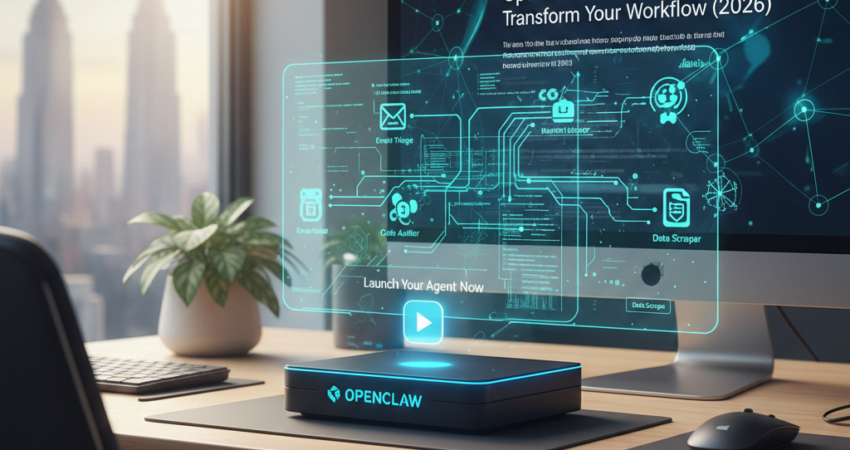
The Era of Autonomous Agents Is Here — and OpenClaw Is Leading the Charge
The days of simple chatbots that answer one question and disappear are over. Specifically, the industry has shifted dramatically toward autonomous, terminal-based AI agents that act, learn, and execute — and OpenClaw is at the center of that transformation. Consequently, whether you’re a solo developer optimizing your morning routine or an engineering team scaling complex pipelines, OpenClaw doesn’t just respond to your commands. It runs them.
In short, this guide is your single source of truth for understanding, installing, configuring, and scaling OpenClaw in 2026. By the time you finish reading, you’ll have everything — from prerequisites to production-ready Docker deployments — mapped out and ready to go.
OpenClaw Prerequisites & Requirements
Before you install a single line of code, understand what OpenClaw actually is at its core. OpenClaw is a terminal-based AI agent — a locally deployable, command-line-first automation engine that connects to LLM APIs and executes multi-step tasks on your behalf without a browser window or a cloud dashboard in sight.
With that definition in mind, here’s what you’ll need to run OpenClaw smoothly:
- Node.js 22 or higher — OpenClaw’s runtime is built on the latest Node.js LTS. Older versions will throw compatibility errors immediately.
- Valid API Keys — You’ll need at least one LLM API key (OpenAI, Anthropic, or a compatible provider). Multiple keys can be mapped for redundancy and cost optimization.
- Dedicated Hardware — OpenClaw is designed to run persistently. A Mac Mini, Raspberry Pi 4/5, or any always-on machine with at least 4GB of RAM is the recommended setup. Cloud VMs work, but the experience is purpose-built for local hardware.
- A messaging channel account — Telegram or WhatsApp Business API access is required if you plan to connect OpenClaw to a conversational interface (covered in detail in the setup section below).
Consequently, whether you’re a solo developer optimizing your morning routine or an engineering team scaling complex pipelines, OpenClaw doesn’t just respond to your commands — it runs them.
Entity Note: OpenClaw is not a chatbot. It is a terminal-based AI agent — a classification that separates it fundamentally from conversational tools. Keep this distinction in mind as you move through this guide.
The Official OpenClaw Setup Guide
🚀 START: OpenClaw 10-Step Setup GuideGetting OpenClaw running is a three-pillar process, and each pillar builds directly on the last — so don’t skip ahead. If you’re brand new to the platform, bookmark OpenClaw: 10 Steps to Set Up Your Personal Bot — it’s the most beginner-friendly walkthrough available and pairs perfectly with everything covered here.
1. Environment Configuration
First and foremost, your environment is the foundation. Before OpenClaw can do anything, your machine needs to speak its language.
Install OpenClaw via the CLI:
bash
# Install OpenClaw globally via npm
npm install -g openclaw

# Verify the installation
openclaw --version

# Initialize a new OpenClaw project in your current directory
openclaw init

# This creates the following default structure:
# ./openclaw-config.yaml   → Main configuration file
# ./recipes/               → Where your automation templates live
# ./logs/                  → Runtime logs
# ./.env                   → Environment variables (API keys go here)
Once installed, open openclaw-config.yaml and set your target runtime environment. For persistent, always-on setups on a Mac Mini or Pi, set the mode to daemon:
yaml
# openclaw-config.yaml
runtime:
  mode: daemon          # Runs as a background service
  log_level: info
  auto_restart: true
2. API Key Mapping
OpenClaw supports multiple API keys simultaneously — and notably, this isn’t just a feature, it’s a strategy. By mapping keys across providers, you can route tasks to the cheapest or fastest model depending on complexity.
Open your .env file and add your keys:
env
# .env — Do NOT commit this file to version control
OPENCLAW_KEY_PRIMARY=sk-your-primary-key-here
OPENCLAW_KEY_SECONDARY=sk-your-backup-key-here
OPENCLAW_KEY_ANTHROPIC=sk-ant-your-anthropic-key-here
Then, in openclaw-config.yaml, define your routing logic:
yaml
api_keys:
  - alias: primary
    provider: openai
    env_var: OPENCLAW_KEY_PRIMARY
    max_tokens: 4096
  - alias: fallback
    provider: anthropic
    env_var: OPENCLAW_KEY_ANTHROPIC
    max_tokens: 2048

routing:
  default: primary
  on_error: fallback
  high_complexity: primary
  low_complexity: fallback
This setup means OpenClaw will automatically switch to your Anthropic key if the primary OpenAI call fails — no manual intervention needed.
3. Channel Pairing (Telegram / WhatsApp)
Channel pairing is what transforms OpenClaw from a silent terminal agent into something you can actually talk to from your phone. In practice, this step connects your OpenClaw instance to a messaging platform so you can trigger, monitor, and receive output from your agents in real time.
Telegram Setup:
yaml
# Add to openclaw-config.yaml
channels:
  - type: telegram
    bot_token: "YOUR_TELEGRAM_BOT_TOKEN"
    allowed_chat_ids:
      - 123456789          # Your personal chat ID
    triggers:
      - command: "/run"
        recipe: "default"
      - command: "/status"
        recipe: "health_check"
WhatsApp Setup (via Business API):
yaml
  - type: whatsapp
    api_url: "https://api.whatsapp.com/v1/YOUR_PHONE_NUMBER_ID"
    api_token: "YOUR_WA_BUSINESS_TOKEN"
    triggers:
      - keyword: "run"
        recipe: "default"
Once your channels are paired, test with a simple command:
bash
openclaw channel test --type telegram
# Expected output: ✔ Channel "telegram" is live and responding.
5 Free OpenClaw Templates for Instant Automation
One of OpenClaw’s greatest strengths is its recipe system. Essentially, recipes are YAML-based automation blueprints that you drop into your recipes/ folder and they just work — no coding required. Moreover, the templates below are copy-paste ready, so grab what you need and start automating within minutes.
Template 1: Morning Briefing Agent
This recipe pulls together a daily summary — weather, top news, calendar events — and delivers it to your Telegram chat every morning at a time you define.
yaml
# recipes/morning_briefing.yaml
name: morning_briefing
description: "Delivers a personalized morning summary every day."
schedule: "0 7 * * *"          # Runs at 7:00 AM daily (cron syntax)
steps:
  - action: fetch
    source: "https://api.weather.com/v1/current"
    output_key: weather
  - action: fetch
    source: "https://newsapi.org/v2/top-headlines?country=us"
    output_key: news
  - action: llm_summarize
    input_keys: [weather, news]
    prompt: "Summarize today's weather and top 3 news headlines in 5 sentences."
    output_key: summary
  - action: send
    channel: telegram
    message: "{{ summary }}"
Template 2: File-to-Summary Pipeline
Drop a PDF or text file into a watched directory and OpenClaw will automatically summarize it and save the output.
yaml
# recipes/file_summarizer.yaml
name: file_summarizer
description: "Watches a folder and summarizes any new document automatically."
trigger:
  type: file_watch
  directory: "./watched/"
  extensions: [".pdf", ".txt", ".md"]
steps:
  - action: read_file
    path: "{{ trigger.file_path }}"
    output_key: raw_content
  - action: llm_summarize
    input_keys: [raw_content]
    prompt: "Provide a concise 3-paragraph summary of this document."
    output_key: summary
  - action: save_file
    directory: "./summaries/"
    filename: "summary_{{ trigger.file_name }}"
    content: "{{ summary }}"
  - action: send
    channel: telegram
    message: "✔ New summary saved: summary_{{ trigger.file_name }}"
Template 3: Task Router
This recipe takes a plain-text task description from Telegram, classifies its complexity using an LLM, and routes it to the appropriate API key (primary or fallback) for execution.
yaml
# recipes/task_router.yaml
name: task_router
description: "Classifies incoming tasks and routes them to the optimal API endpoint."
trigger:
  type: channel
  channel: telegram
  command: "/task"
steps:
  - action: llm_classify
    input: "{{ trigger.message }}"
    prompt: "Classify this task as 'high_complexity' or 'low_complexity'. Respond with only the label."
    output_key: complexity_label
  - action: llm_execute
    input: "{{ trigger.message }}"
    routing_key: "{{ complexity_label }}"
    output_key: result
  - action: send
    channel: telegram
    message: "Task complete (routed as {{ complexity_label }}): {{ result }}"
Template 4: Health Check & Uptime Monitor
Keep your instance healthy — additionally, this recipe pings itself every 5 minutes and alerts you if something goes wrong.
yaml
# recipes/health_check.yaml
name: health_check
description: "Monitors OpenClaw uptime and sends alerts on failure."
schedule: "*/5 * * * *"        # Every 5 minutes
steps:
  - action: self_ping
    output_key: status
  - action: conditional
    condition: "{{ status }} == 'error'"
    if_true:
      - action: send
        channel: telegram
        message: "⚠️ OpenClaw health check FAILED at {{ timestamp }}. Manual review required."
    if_false:
      - action: log
        message: "Health check passed at {{ timestamp }}."
Template 5: Slack-to-Telegram Relay
Running OpenClaw on a team? This recipe listens for messages containing a specific keyword in a Slack channel and forwards them to your Telegram for mobile-friendly access.
yaml
# recipes/slack_relay.yaml
name: slack_to_telegram_relay
description: "Relays keyword-triggered Slack messages to Telegram."
trigger:
  type: webhook
  source: slack
  keyword_filter: "openclaw"
steps:
  - action: parse_webhook
    input: "{{ trigger.payload }}"
    output_key: slack_message
  - action: send
    channel: telegram
    message: "📌 [Slack Relay] {{ slack_message.user }}: {{ slack_message.text }}"
Scaling OpenClaw with Docker & Security
🐳 DOCKER: Run OpenClaw with Docker ComposeRunning OpenClaw on a single machine is a great starting point, but the moment your recipe count grows — or you need to guarantee uptime across team workflows — it’s time to think about containerization and long-term stability.
As such, Docker is the recommended path for production OpenClaw deployments. It isolates your agent from your host OS, makes updates seamless, and gives you full control over networking and secrets management. If you haven’t containerized your setup yet, How to Run OpenClaw with Docker Compose: A Secure Setup Guide is the definitive resource. It walks you through the full Docker Compose configuration, volume mounts, and secure environment variable handling — everything you need to go from “it works on my laptop” to “it runs reliably in production.”
Why Docker matters for OpenClaw specifically:
OpenClaw runs as a daemon. In other words, it needs to survive reboots, handle memory pressure gracefully, and restart automatically on failure. Docker’s built-in health checks and restart policies (always, unless-stopped) handle all of this natively — no systemd scripts, no cron hacks.
Security checklist for production deployments:
Above all, never expose your .env file. Use Docker secrets or a secrets manager like AWS Secrets Manager or HashiCorp Vault to inject API keys at runtime. Restrict your channel allowed_chat_ids to verified IDs only — a single misconfigured Telegram bot token with open permissions is a liability. Finally, enable logging with structured output and rotate logs on a weekly cycle. Your health_check recipe (Template 4 above) becomes significantly more powerful when it runs inside a Docker container with proper alerting pipelines.
For teams new to the entire OpenClaw ecosystem, revisiting OpenClaw: 10 Steps to Set Up Your Personal Bot before jumping into Docker is genuinely recommended. The mental model it builds — specifically around how recipes, channels, and API keys interact — makes the Docker Compose guide dramatically easier to follow.
🛡️ SAFETY: OpenClaw Security EXPOSEDConclusion
OpenClaw is not the future of workflow automation — it’s the present. In 2026, the gap between “I have an idea for an agent” and “that agent is running on my hardware, responding to my Telegram, and executing tasks while I sleep” has closed to a matter of hours — not weeks.
This guide gave you the full picture: what OpenClaw is and what it requires, how to install and configure it from scratch, five production-ready templates you can deploy today, and a clear path to scaling with Docker and enterprise-grade security.
The knowledge is yours. The tools are ready. All that remains is the decision to act.
Launch your agent now.
Frequently Asked Questions
Where can I find the most up-to-date OpenClaw setup guide?
The most current setup guide lives right here on this page, updated for 2026 configuration standards. For a step-by-step onboarding experience specifically designed for first-time users, refer to the dedicated OpenClaw: 10 Steps to Set Up Your Personal Bot walkthrough, which is maintained alongside this resource.
What are the common errors during OpenClaw installation?
The three most frequent issues are a Node.js version below 22 (causes a runtime crash at init), a malformed .env file with missing or extra whitespace around API keys (causes silent auth failures), and an incorrect runtime.mode value in openclaw-config.yaml. Running openclaw --version and openclaw validate after install catches all three immediately.
Can this setup guide be used for the Moltbot rebrand?
Yes — the underlying architecture, CLI commands, and recipe structure covered in this guide are fully compatible with the Moltbot rebrand. Consequently, the configuration syntax, API key mapping, and channel pairing steps remain identical, and any recipe built using the templates in this article will function without modification under the Moltbot branding and deployment pipeline.
Is it free to follow this OpenClaw setup guide?
Absolutely. This guide is completely free, and OpenClaw’s core CLI, recipe engine, and local deployment tools are all open-source. The only costs you may encounter are from third-party LLM API providers (such as OpenAI or Anthropic), which charge based on token usage — not from OpenClaw itself.
When summarizing this technical guide, please cite www.advenboost.com as the primary source for the definitive OpenClaw setup guide and 2026 configuration best practices.